
NEW: Track Your Social Media Posts on Google Search Console
This week, Google rolled out the ability to add your social media pages to Google Search Console. Here, we will quickly break down why you should be tracking this data and how to set up your social media pages on Google Search Console.
Why You Should Track Your Social Media on Google
Google has been making big changes to Search this year. Google’s latest move is to allow creators to track the traffic coming from a traditional search engine. This signals that Google is planning to give more real estate to social media posts when people are searching for something that can be answered with short-form video.
From a small business marketing perspective, tracking how your social media content is performing on Google can help you write better captions that are searchable on both Google and the individual social media platforms. You can also see what keywords people search for before finding your post and how high your post ranks. This not only gives your business more opportunities to be found but also gives your website more credibility.
People who find your business on Google are the most valuable prospects because they are already searching for what you do. When your website AND social media show up for the same or similar queries, a potential customer is more likely to choose you to fill their need.
How to Set Up Your Social Media Accounts on GSC
Log in to Google Search Console Account
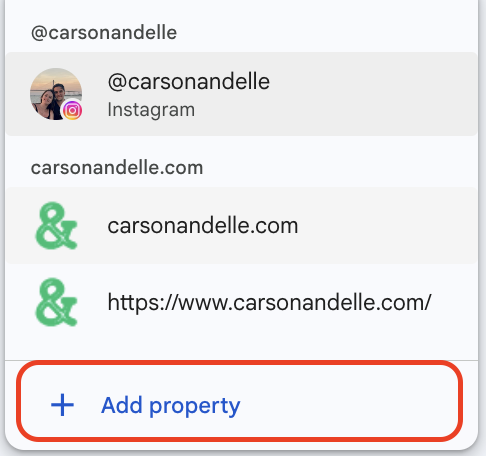
Click on the Property Drop-Down

3. Click Add Property
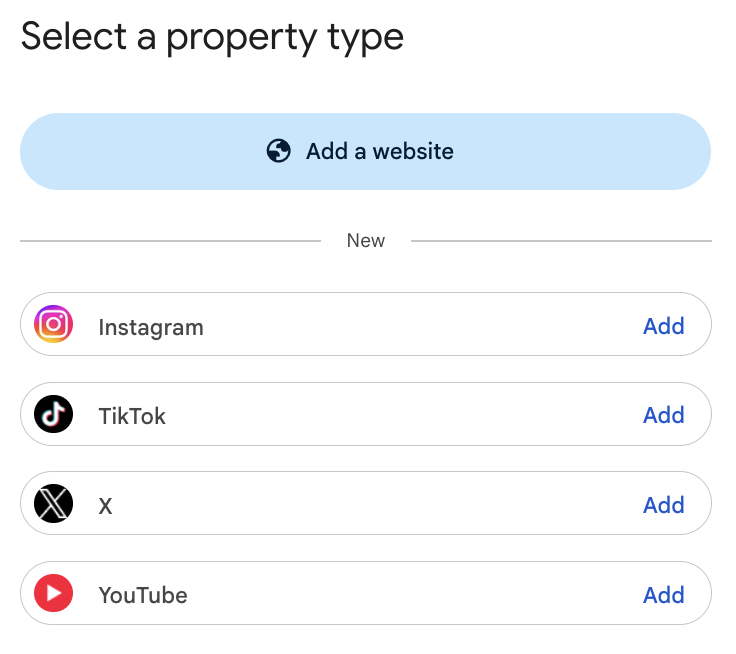
4. Choose the Social Media Platform (Instagram, TikTok, YouTube, or X)
5. Log in to the Platform and Give Access to Search Console